Cause Tree |
The cause tree is displayed on the right side of the screen. The cause tree is made up of boxes (causes) which branch out from the key concern. |
Using Cause Boxes |
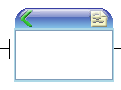 |
Unselected Cause
Unselected causes will have a blue title bar. |
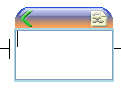 |
Selected Cause
The currently selected cause will have an orange title bar. |
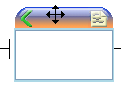 |
Move a Cause
Each cause can be dragged and can be moved by left clicking your cursor in the center of the blue bar and dragging. |
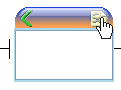 |
New Cause
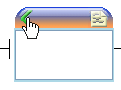
To create a new cause click on the page image in the top right corner of the cause, the new cause will then be attached to that cause. |
 |
Link to a Different Cause
To link a cause to a new cause left click on the green arrow in the upper left corner, and drag and release on another cause. Alternatively you can click the green arrow once then click on the cause you would like it to link to. Releasing the mouse when not over a cause will not change what the cause is linked to. Doing the same thing but with the right mouse button will make a copy of the cause and its subtree where you have released your mouse. |
 |
Accessing Cause Menu
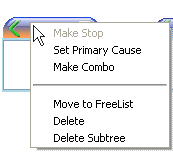
To access the cause menu right click on the center of the cause title bar. Grey items cannot be selected as the conditions to perform that action have not been met on that cause. |
|
Understanding Cause Types |
|
Key Concern
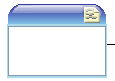
This is the Key Concern and all causes will branch out from the key concern until the root cause is found. It can be identified by having no green link arrow. |
|
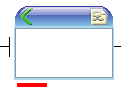
Possible Cause
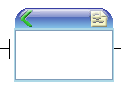
This is a cause that might be able to switch a problem on and off. It can be identified by not yet having evidence, a red box will appear in the bottom left when evidence is applied. |
|
Confirmed cause
Evidence has been provided that the cause is actually present & can turn the previous cause on and off. It can be identified by having a red box in the bottom left corner. |
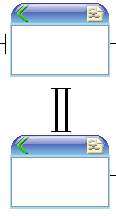 |
Combination Causes
Needs all parts to switch on before the previous cause can occur. Combination causes can be identified by being horizontally aligned and vertical double lines between them as shown on the left. |
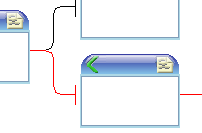 |
Primary Cause
The primary cause represents where a Confirmed cause in the tree was present for this incident at this time. The primary cause is identified easily as where it is in a tree will have a red path leading from the key concern to the primary cause. |
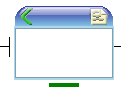 |
Cause Action
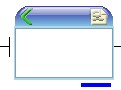
Actions can be set and managed for a cause and if an action is present then the cause will show a green box centered and below the cause. |
 |
Cause Details
If details of a cause have been set then a blue box will be displayed in the bottom right hand corner. |
|
Cause Tree Menu |
The cause tree panel menu contains functions for the cause tree.
- Reports - This is a drop down menu for generating reports
- Cause Tree - This will generate a report of the cause tree.
- Actions - This will generate a report of all the actions on the cause tree.
- Language - This is a drop down menu of various languages. Selecting a language will change all labels into that language.
- Refresh - This function will re-organize the causes so that they are spread nicely and easy to read.
- Zoom In - This will enlarge causes and reposition causes for the illusion of zooming in.
- Zoom Out - This will shrink causes and reposition causes for the illusion of zooming out.
|
Toolbar |
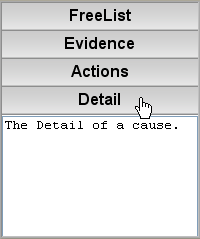 |
The toolbar on the left is made up of 4 panels. Only one panel can be shown at any one time. To show a panel, simply click on one grey bar to open up that panel. The Detail panel is currently being shown in the image to the left.
|
|
Free List Panel |
The free list panel contains a list of causes that do not have parents and can be added to the selected cause by clicking on an item in the list. Items from the "Brainstorm for Causes" step will appear in the free list.
|
Evidence |
This panel contains an array of evidence for the selected cause. Clicking on an evidence item will show evidence at the bottom right of the page. Each evidence item has the reliability of the evidence, the source, and a description of the evidence. More evidence can be added by clicking Add Evidence. To delete evidence click on the red cross right of the evidence.
|
Actions |
This panel contains multiple actions for the selected cause. Clicking on an action item will show 3 tabs below the cause tree. The tabs are action, benefits and Comments. More actions can be added by clicking Add Action in the Actions panel. To delete actions click on the red cross right of the actions.
|
Details |
The details panel shows a more in depth detail of the selected cause.
|
